In our „Database of the Month“ series, we regularly present research tools that support your academic work. This article focuses on Business Source Complete.
Content
- Business Source Complete – What is that?
- Simple search
- Avanced search
- Company Data by NAICS Code
- Conclusion
Business Source Complete – What is that?
The Business Source Complete database is a search interface for full-text searches in the field of economics. It contains the full texts of over 3,800 economics journals, including approximately 2,000 peer-reviewed titles. Approximately 10,000 journals are indexed. However, like WoS and Scopus, it also includes abstracts and reference lists for articles, as well as links to cited literature. It is therefore also an abstract and citation database, allowing for both forward and backward searches.
In addition to journals, the database also lists the following full-text resources:
- 40,000 author profiles
- more than 900 eBooks
- 7,600 Industry reports
- nearly 9,000 Interviews
- Case studies, SWOT analyses, working papers, etc.
BSC provides researchers access to key journals in the field of economics, such as Harvard Business Review, Academy of Management Journal, Academy of Management Review, Management Science, Marketing Science, MIS Quarterly, Bloomberg Businessweek, Forbes, Fortune and many others.
Simple search
As with other databases, Business Source Complete offers both a simple search and an advanced search.
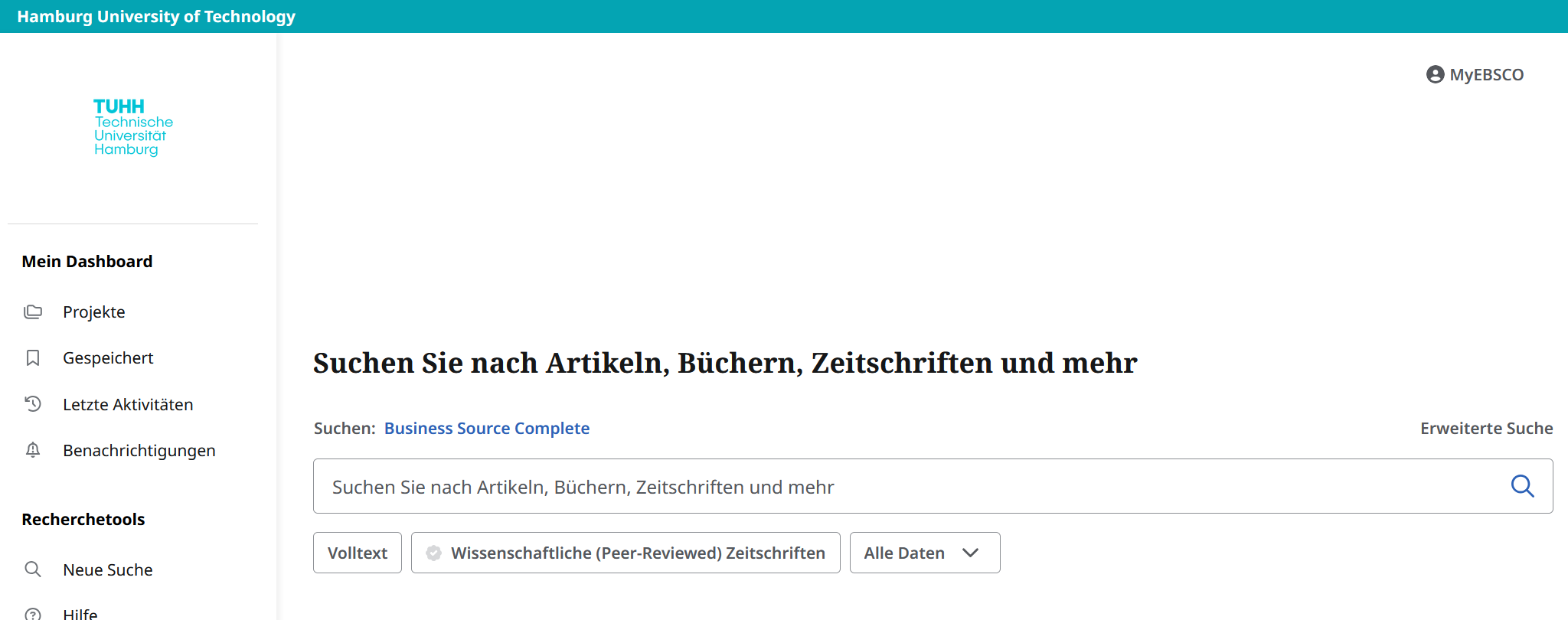
Simple Search (Image not under a free license)
As you start typing a search term, the system “suggests” the words you’ve started typing:
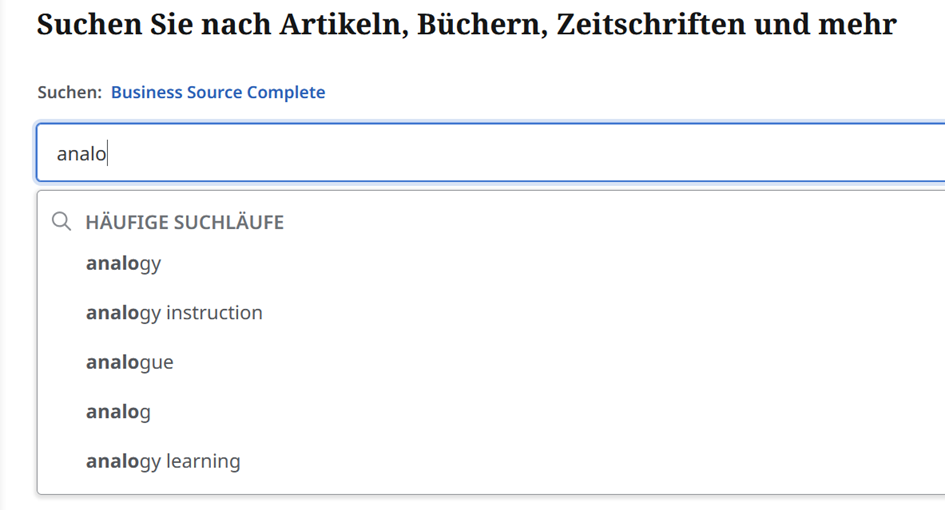
Automatic word suggestions (Image not under a free license)
Below the search bar for the basic search, you can already see the first filters, which can be activated with a click: Full Text and Scholarly (Peer-Reviewed) Journals, as well as All Dates and Source Type. Without these filters, the search terms “jazz” and “innovation” yield 30 results:
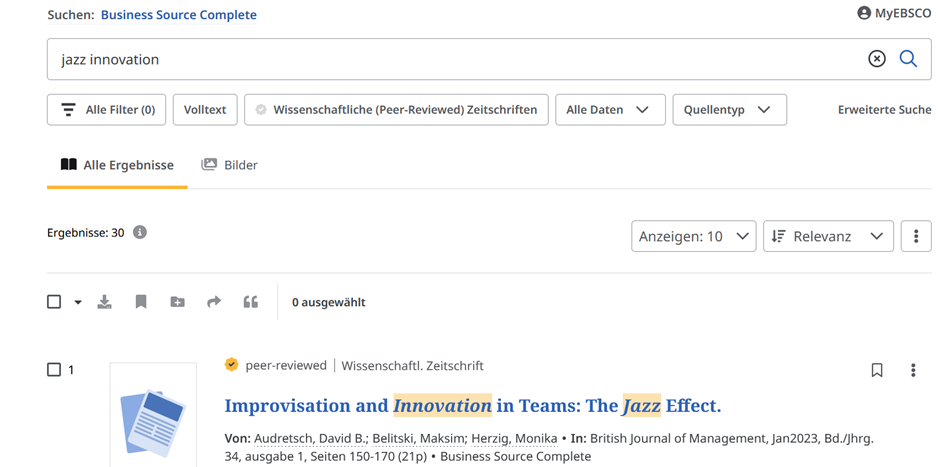
Search without filtering (Image not under a free license)
When the filters mentioned above are enabled, there are only 3 results:
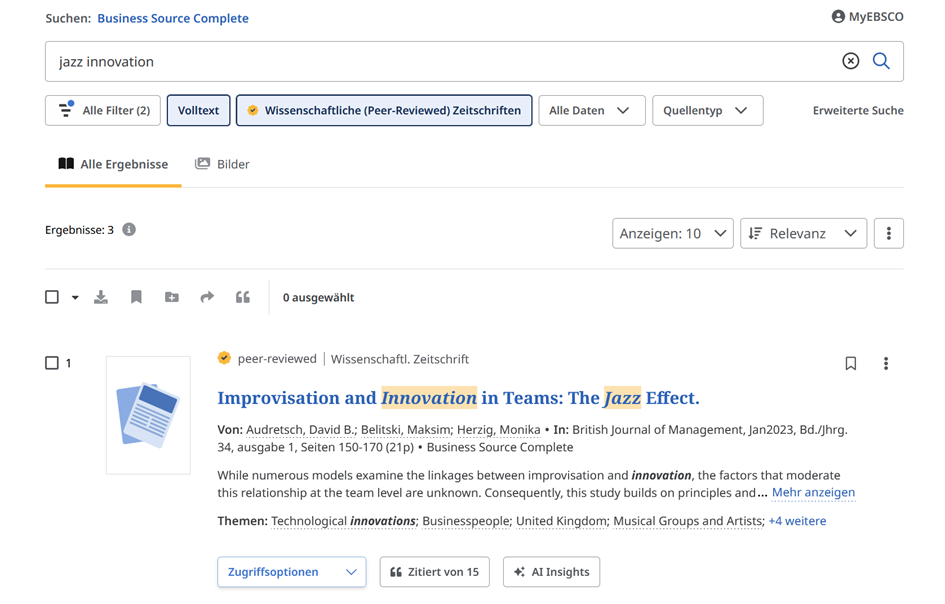
Initial filters: Full text and academic journals, as well as All data and Source type (Image not under a free license)
In addition, when using the simple search under “All Data,” you can narrow down the results by time period:
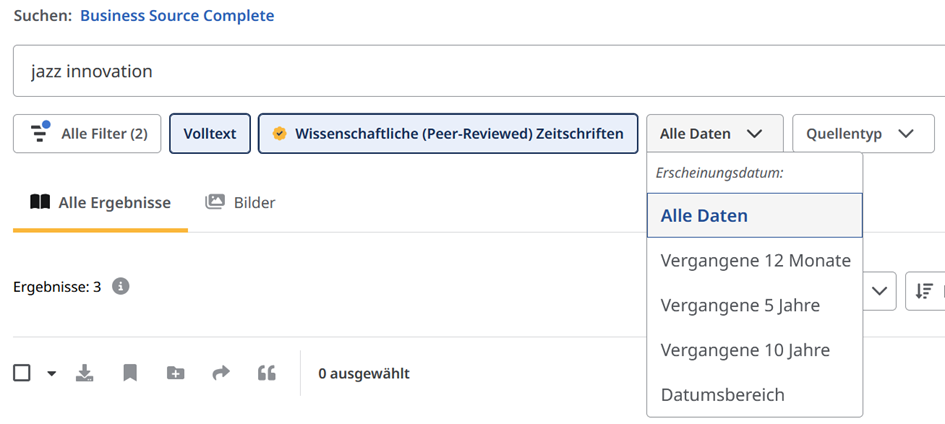
Filter All Data (Image not under a free license)
This is interesting, but should certainly be taken with a grain of salt. You can generate an AI summary using the AI Insights button, which analyzes the full text:
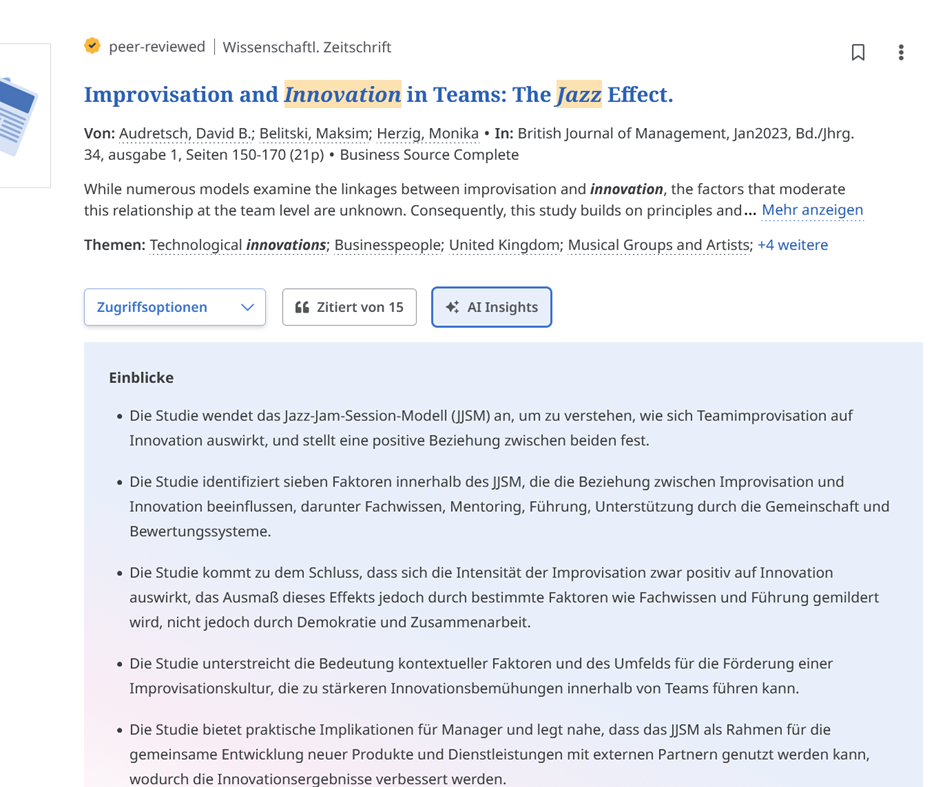
Summary generated by AI (Image not under a free license)
And the articles that cite it can be displayed:
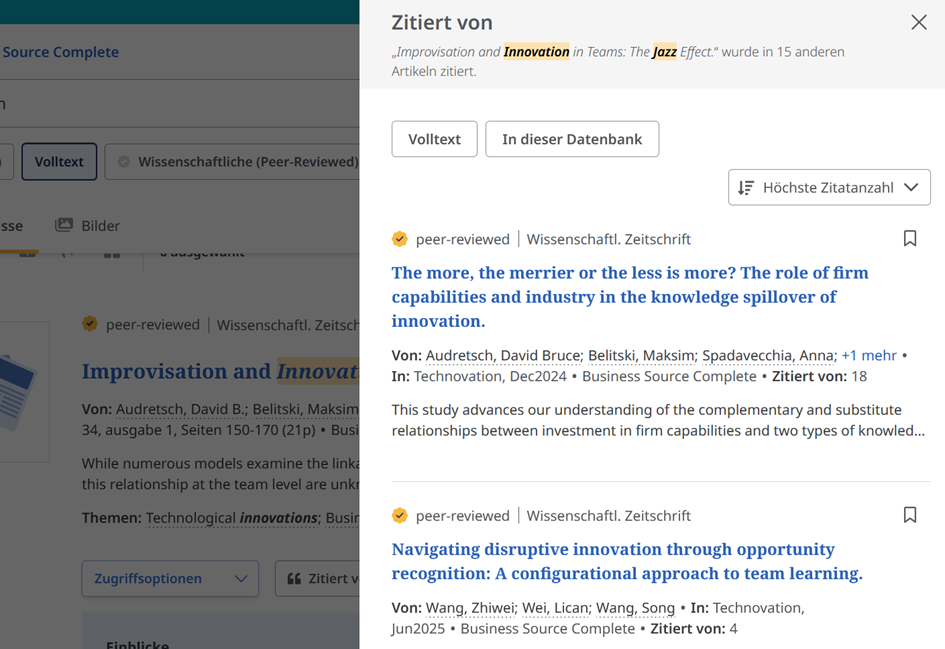
Forward search option: View citing articles (image not under a free license)
When you click on an article, it opens:
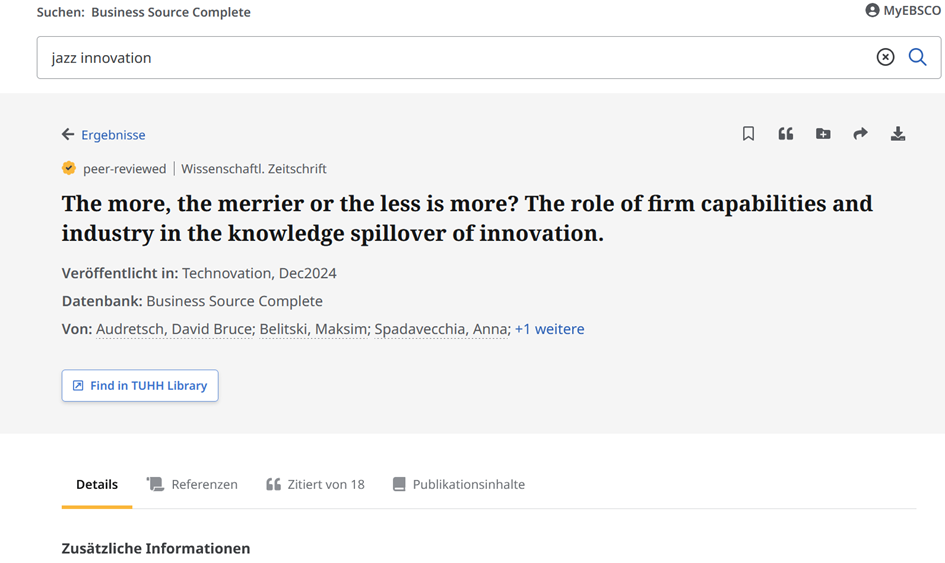
Article details with a link to the bibliography (references) and citing works (cited by) (Image not under a free license)
In the upper-left corner, you can click < Results to return to the original search results.
Unfortunately, you cannot search for specific authors in the results. The results are not limited to the BSC database; other citing sources are also displayed. Of course, only those from your own database can be accessed via a download option or access link. You can specify this using a filter at the top of the list: “In this database.” Otherwise, hits from the database are displayed with a link, while articles from other sources are shown without a link and without colored highlighting (the bottom article in the screenshot):
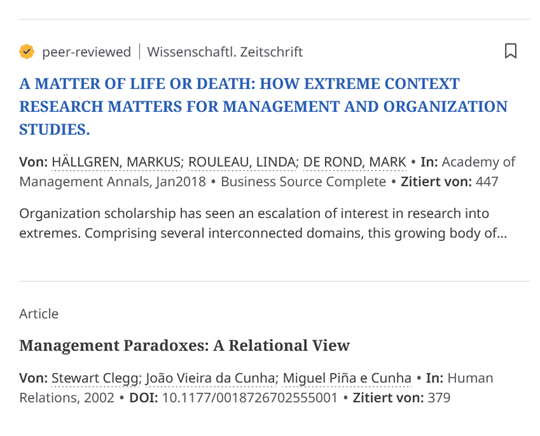
Display of an article from one’s own database and verification of a match from another source (image not under a free license)
When you view an article, various pieces of information are displayed. Directly below the title: the authors’ names, the journal’s name, and the name of the database in which the result was found. This is followed by access options, such as a download link or a link to your own library. Below that, details on additional metadata are displayed, such as:
Source: This field indicates the type of source from which the result originates (academic journal, book, or daily newspaper, including details such as the journal’s name, year, volume number, and page number).
Document type (in this case, “Article”), authors’ affiliations (as listed in other databases), ISSN, DOI, accession number and publisher.
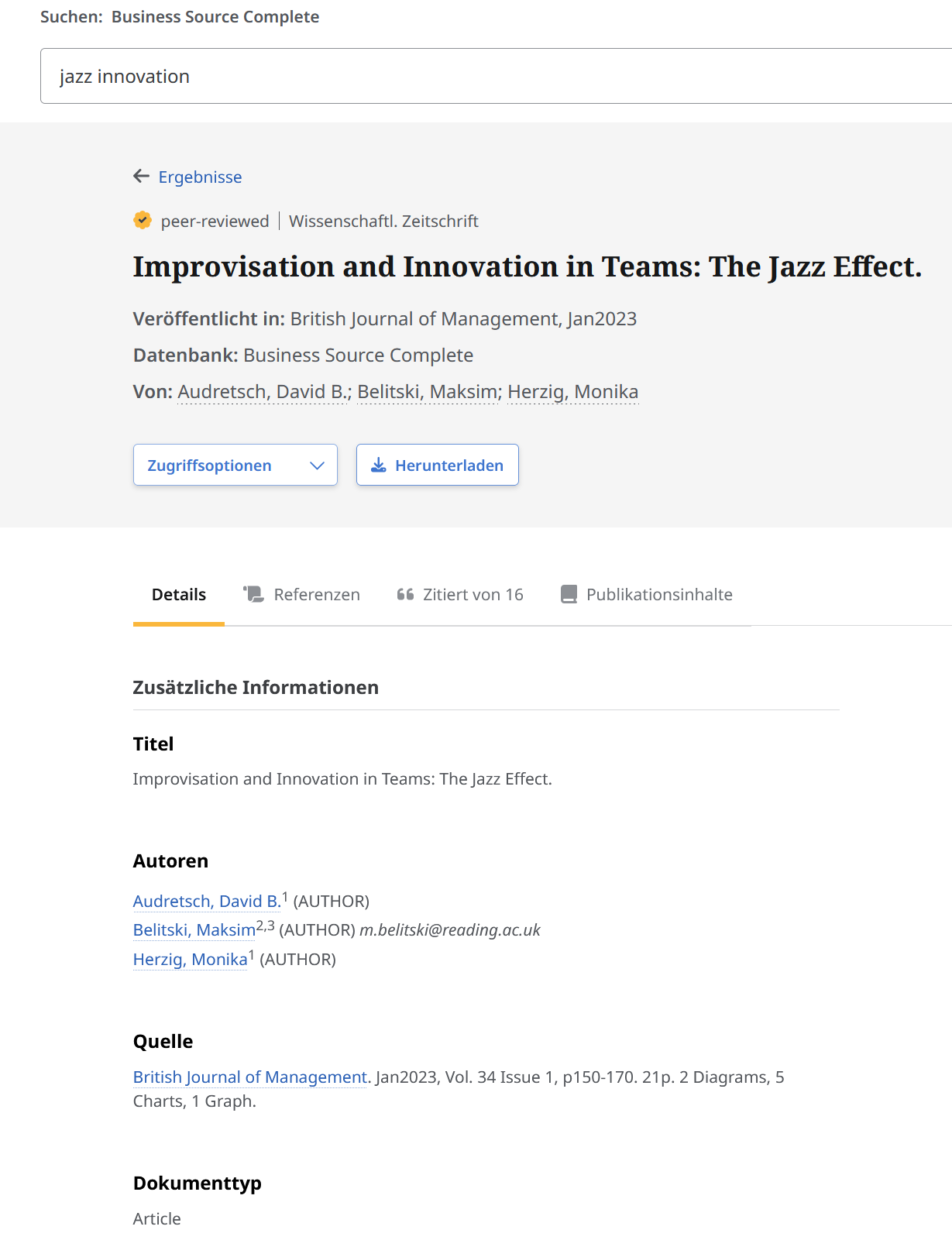
Bibliographic information for an article (image not under a free license)
In addition to “Details,” there are other buttons:
References lists the sources cited in the article. “Publication Contents” displays the contents of the respective journal issue, including the table of contents for the issue in which this article was published. Under Cited By, you can view the works that cite this article. The metadata section displays the abstract or a preview of the article.
Oben rechts neben den Titelangaben des ausgewählten Treffers gibt es die Möglichkeit, den Artikel zu zitieren, zu speichern, weiterzuleiten, zu einem Projekt hinzuzufügen oder herunterzuladen. Beim Klick auf das Symbol für Zitieren öffnet sich ein Fenster, in dem der Zitationsstil ausgesucht oder angepasst werden kann:
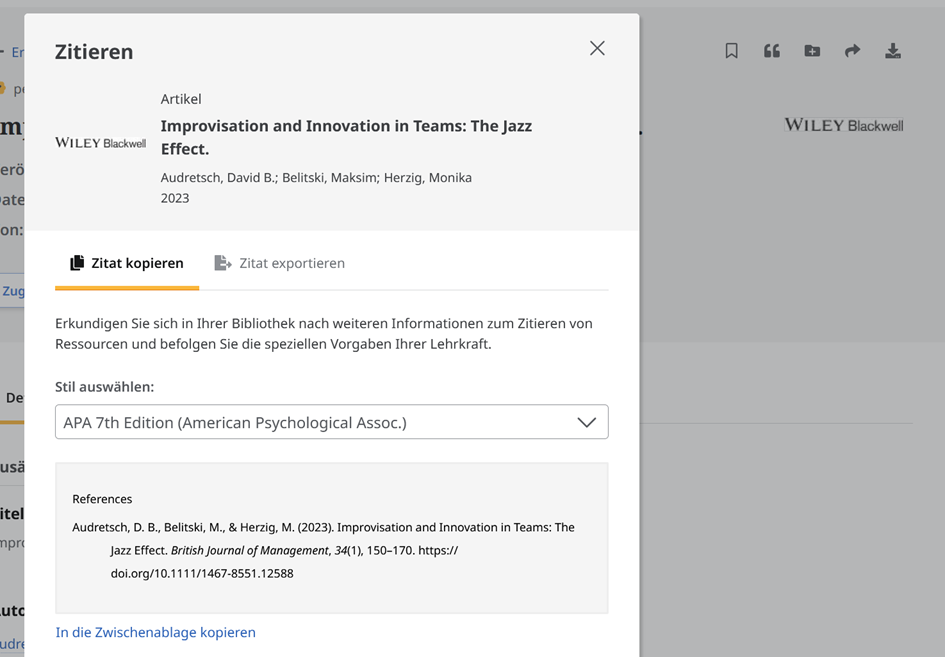
Citation feature for the displayed article (image not under a free license)
Advanced search
When launching Business Source Complete at TUHH, the advanced search is displayed by default:
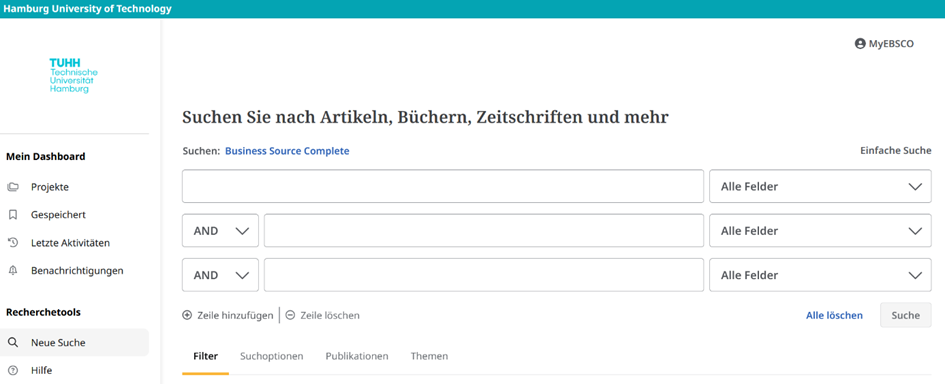
Database homepage with advanced search (Image not under a free license)
As in other databases, the advanced search feature allows you to search using multiple search fields, so that different terms can be combined using Boolean operators. To do this, you can select the type of field in which you want to search.
In addition to title, author, abstract, keywords, or full text, you can also specify here whether to search by NAISCS code or DUNS number (see below).
Below the search bars, you can also enable various search modes under Search Options.
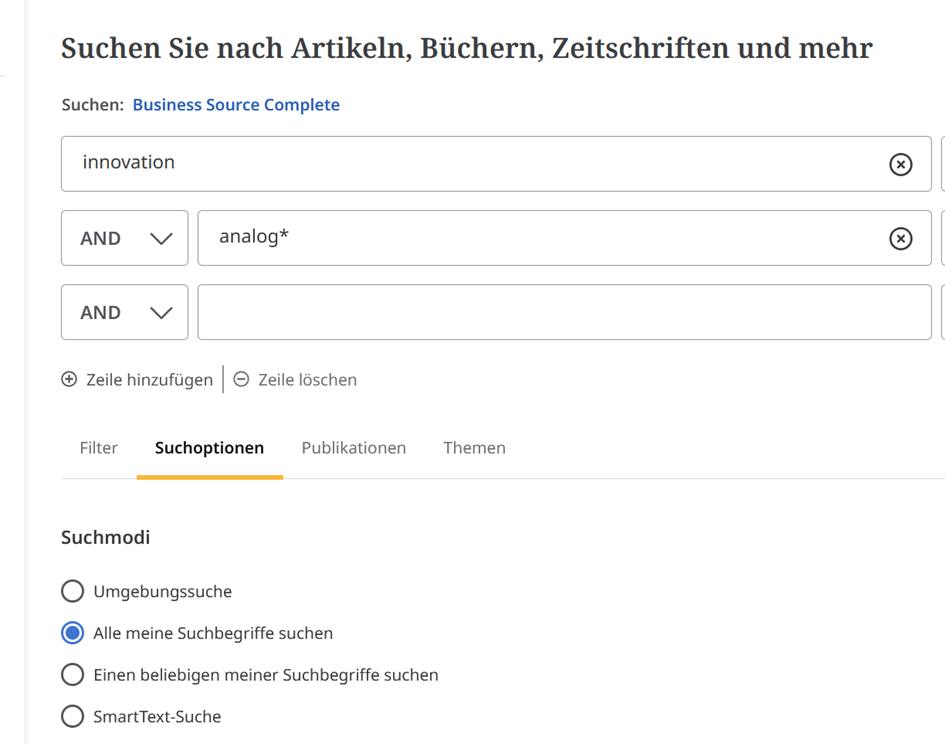
Search form with search options (Image not under a free license)
The German translation is a bit unfortunate here, because Umgebungssuche doesn’t mean what you might initially think (or maybe not); rather, it refers to how close a search term is to another search term within a text: in English, this is called proximity. The software is set by default so that no more than five other terms may appear between two search terms. The other search modes are self-explanatory: Search for all my search terms and Search for any of my search terms. However, this is essentially a duplication of the Boolean operators “AND” and “OR” available in the search field, although the “NOT” operator is also available here.
Another search mode is SmartText search. With this mode, you can enter a short text (a paragraph or a page), from which relevant search terms are then generated. However, other search modes are ignored in this process. The manufacturer does not recommend this as the default search mode.
What’s interesting, however, is the search mode Use Related Words, which automatically searches for alternative terms. This is an approach that would otherwise require creating a search term diagram to identify search terms: different spellings of a term, synonyms, and related terms within a topic.
You can further refine your search by selecting the Publications and Topics settings. The “Publications” option allows you to limit the search to specific journals of your choice. The “Topics” option lets you add specific topics using the database’s own thesaurus; these are then added to a separate search line by clicking “Add.” In the example, the search term “Industry” was used, and “Industrial waste management” was selected from the suggestions.
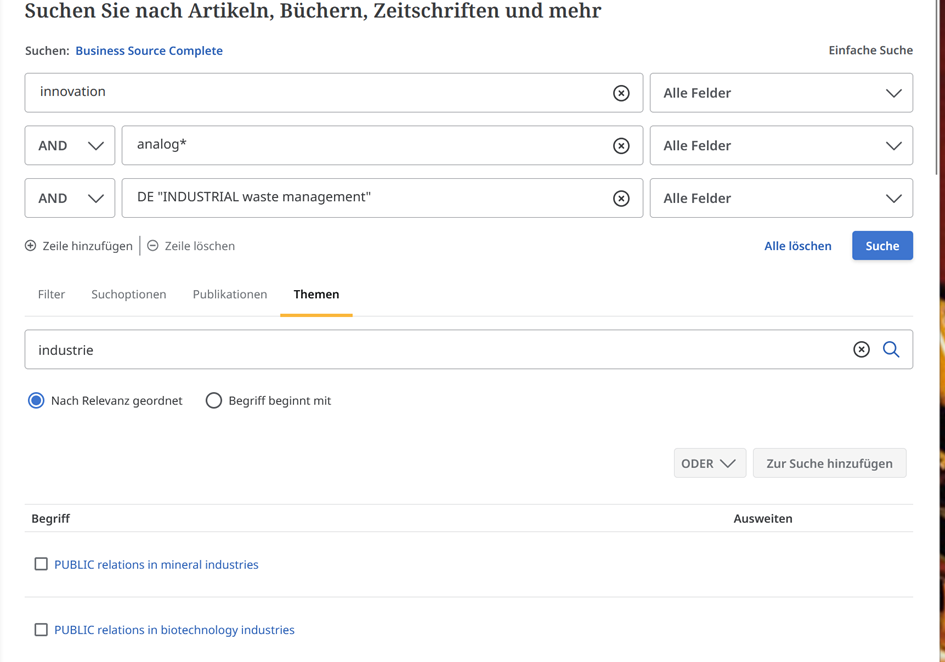
Narrowing a Search Using Keywords (Image not under a free license)
You can apply additional filters to the results list:
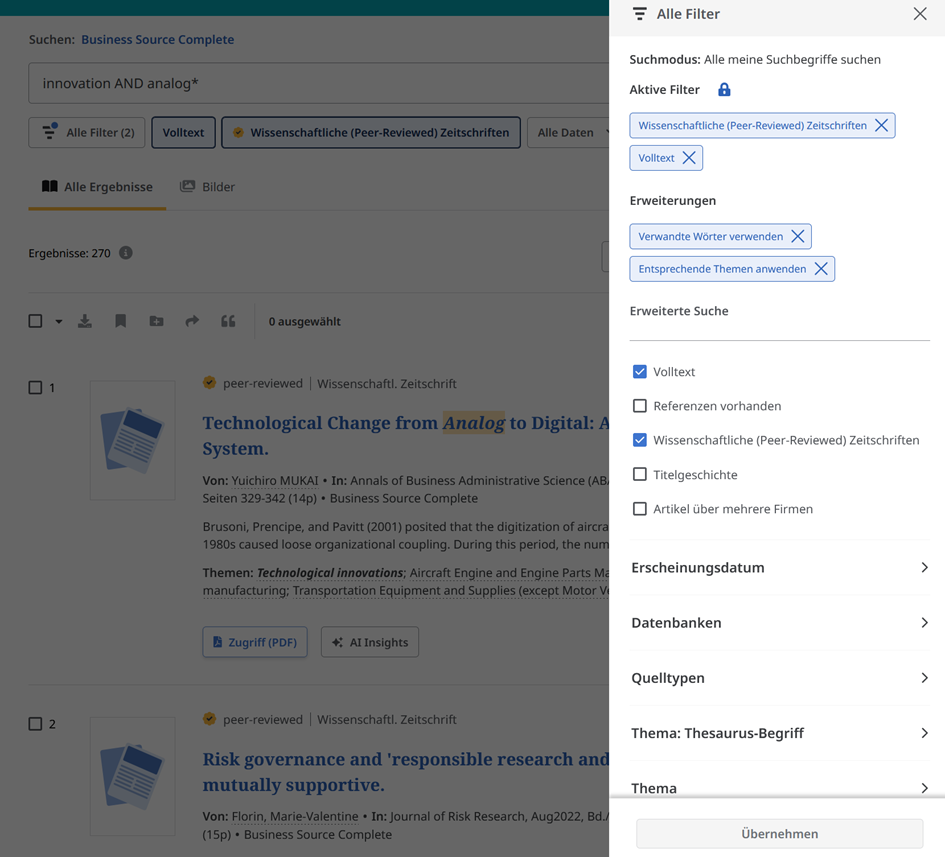
Possible filters in the results list (image not under a free license)
For example, you can view the results sorted by source type—in this case, academic journals or (daily) newspapers.
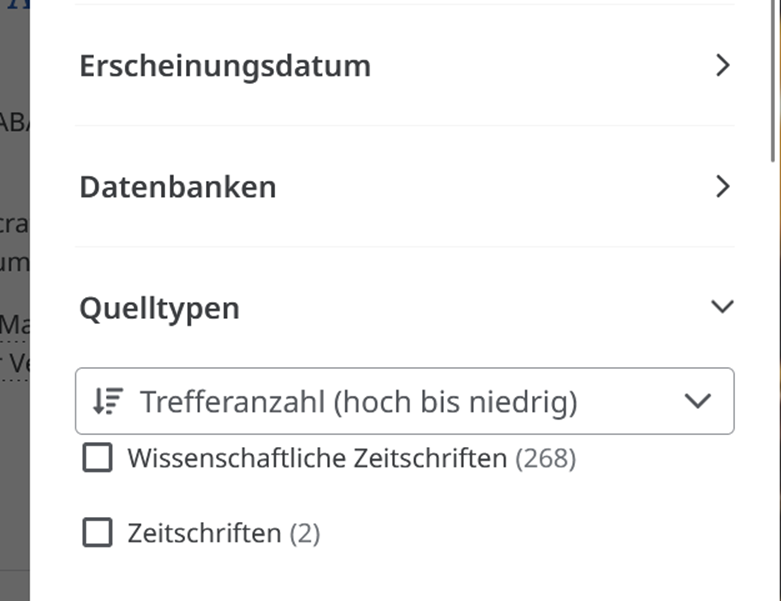
Additional filters include: “Topic: Thesaurus Term”, “Topic” or “Publication:
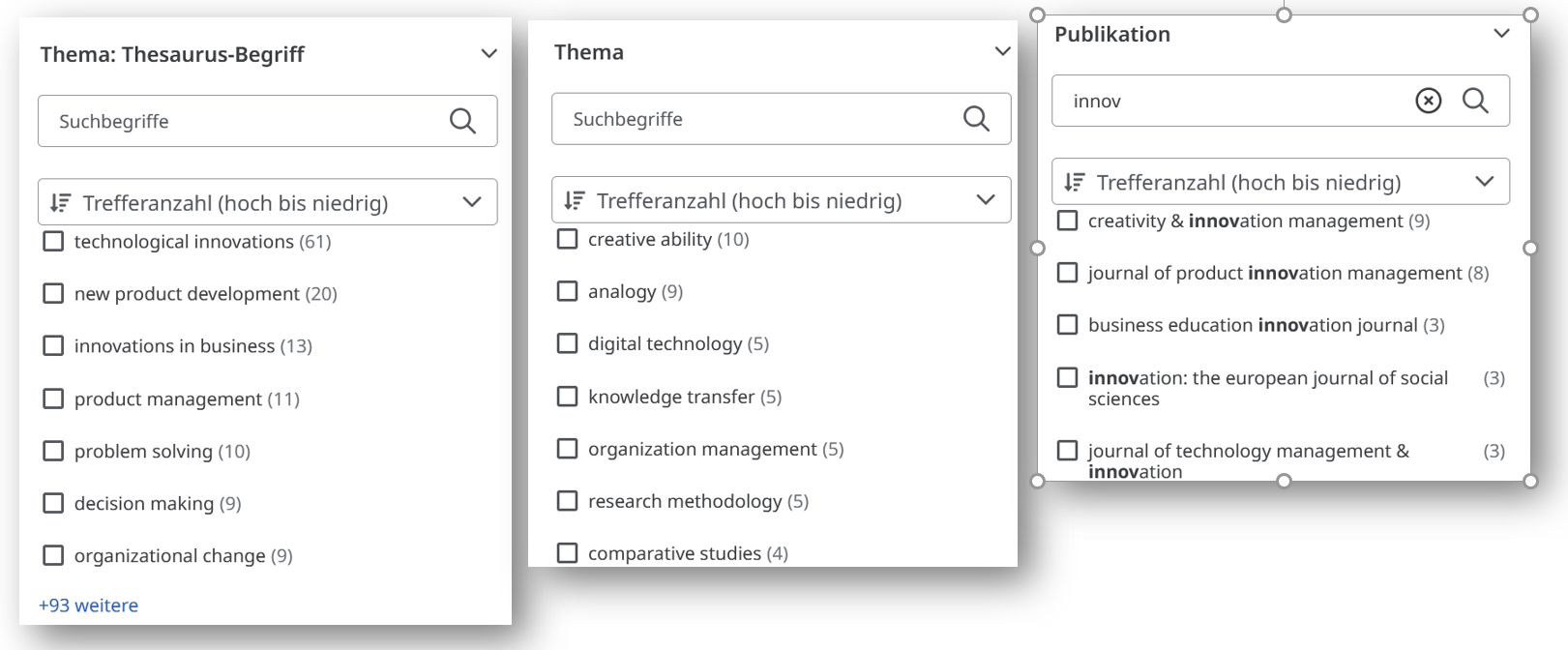
In the Publication filter, you can search for terms that should appear in the journal title—in this screenshot, “Innov…”—and the number of results for each term is displayed in parentheses. You can also search for terms within the list.
The list of results can also be searched by publisher, company, country, language, and other criteria.
Company Data by NAICS Code
A unique feature of this database is the ability to search for company information.
The NAISCS code (North American Industry Classification System) is the official system for classifying businesses by industry in the United States, Canada, and Mexico, while the DUNS number (Data Universal Numbering System) is a globally recognized, 9-digit identification code for businesses.
There is an official list of NAICS codes (pronounced “Nakes”) available here. If you don’t know a NAICS code, you can use the search function to enter a company name and view the codes that correspond to the product.
Fazit
Business Source Complete is particularly valuable as a specialized database for economists because it focuses on journals in this field and actually allows full-text searches of these journals. Other databases “only” search titles, abstracts, and keywords—which, of course, BSC also does. Since there is currently no alternative of comparable quality, this database—which is, unfortunately, very expensive—is indispensable.