
In our „Database of the Month“ series, we regularly present research tools that support your academic work. This article focuses on Scopus.
Inhalt
- What is Scopus?
- The Scopus interface
- Simple search
- Advanced search
- Numerous filter options
- Hit analysis
- Search for researchers
- Conclusion
What is Scopus?
Scopus is a multidisciplinary search platform for finding scientific literature.
As an abstract and citation database, it includes content from more than 100 million articles from over 28,000 journals, most of which are peer-reviewed. It also includes 13 million conference papers and 39 million patents. It currently indexes approximately 2.4 billion citations. The content is in English, and searches are conducted in English. Scopus is a paid service and is funded by TUB.
The search results display titles, abstracts, and keywords, but not full texts; however, links are provided to open-access full texts, of which there are currently over 25 million. Scopus also provides references to related documents (Similar documents) that share common references or cite one another.
As a citation database—like Web of Science—Scopus records not only the articles listed within it but also the sources used in them—the reference list—as well as the articles that cite the current article. This allows for both forward and backward searches: Which articles underlie the current one and are cited (references), and who has cited the article since its publication.
By analyzing the relationships between citing and cited articles, metrics can also be calculated to assess the scientific significance of a journal, an article, or an author, such as the impact factor or the h-index. At TUB, for example, data exchange with TORE is facilitated using an API (Application Programming Interface) provided by Scopus, ensuring that metadata on researchers and their publications is always kept up to date—for instance, for the preparation of research reports or for institutional evaluations.
The Scopus interface
After the database launches, the Scopus simple search is displayed:
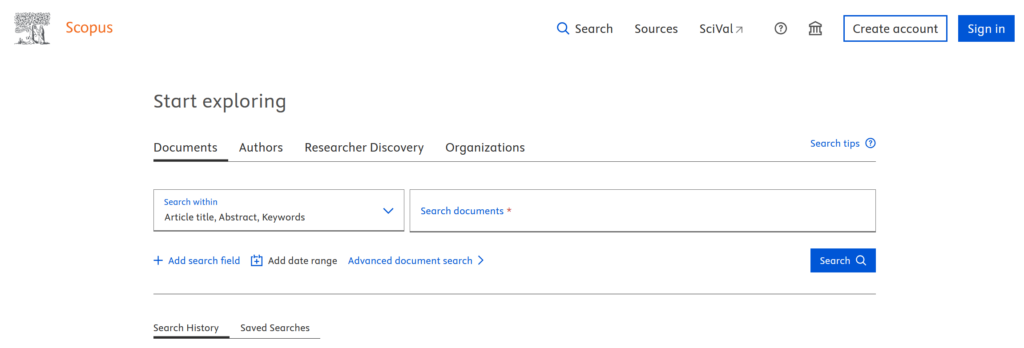
Simple search to get started (Image not licensed under Creative Commons)
The default setting is the document search, but you can also use the basic search to look for authors, research areas, or organizations; these options can be selected using the various tabs above the search window.
Simple Search
The basic search can be expanded to allow users to select different search fields. To begin a search, we recommend using the default search field “Article title, Abstract, Keywords.” Other useful search fields include “Source title,” “Affiliation,” “Funding sponsor,” and “DOI.”
You can also add additional lines for search terms using the menu option below the search field labeled “+ Add search field.” These can then be combined using the Boolean operators AND, OR, and NOT. The latter can be configured in even greater detail in the Advanced Search.
In the example, a search was performed for the terms “renewable energy,” yielding nearly 400,000 results. Of course, this is far too many, but there are numerous ways to narrow down the results, which will be discussed later.
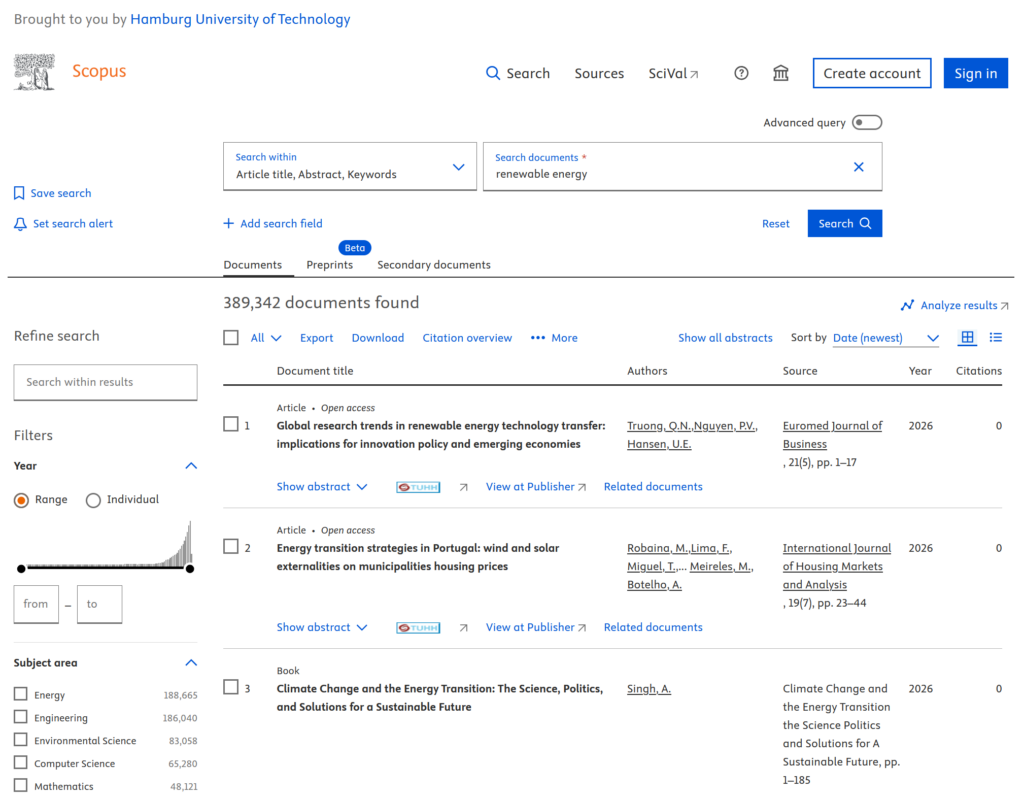
Search results from a simple search (Image not licensed under Creative Commons)
To the left of the search results, you can already see the first filtering options; in addition to the time period, you can also narrow down the subject area and search for additional terms within the results. The abstract must be actively accessed by clicking “Show abstract” below the respective result. Here, the results are displayed sorted by the most recent date, but you can also select “Relevance,” “Cited by (highest),” “First Author,” or “Source Title.”
To perform a more complex search, it’s a good idea to explore the advanced search feature. This type of search allows you to create very detailed and in-depth search queries.
Advanced Search
The “Advanced Search” feature in Scopus allows users to create their own search strings by combining various search fields and search terms, which can be linked using Boolean operators, similar to what is possible in the basic search. The advantage of the advanced search is the ability to create complex search strings with long search queries, such as for a systematic literature review, where such a search string can sometimes span an entire A4 page. Here is just a brief example of a search in the field of bioreactors with algae:
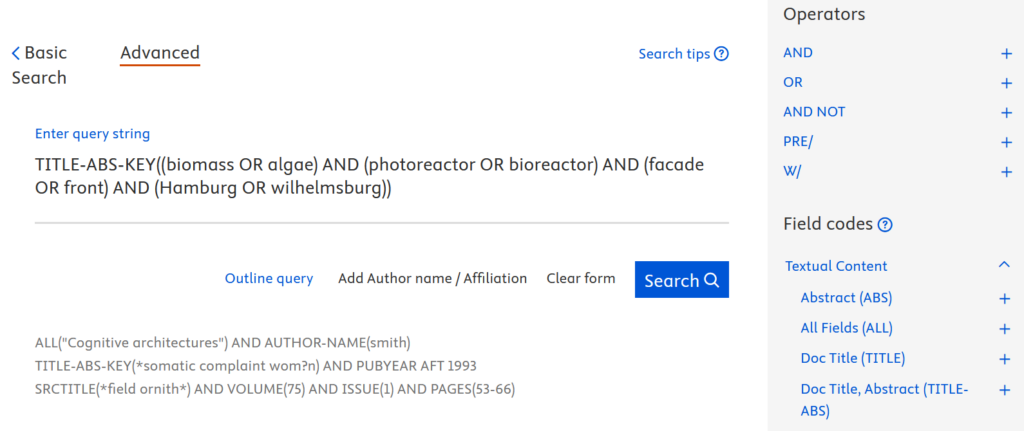
Custom search string for more complex searches (Image not under a free license)
The search string was created using a search term diagram in which various alternatives for the search terms (synonyms, variants) were combined using Boolean operators. The search string was further refined by limiting the results to publications from 2002 onward, and finally, all results were required to be licensed under an Open Access license. This yielded 15 hits; without the Open Access filter, there would have been 52.
On the right side of the screen, you can see some of the search field codes that can be selected by clicking the plus sign.
The strength of a database such as Scopus or Web of Science lies in its ability to narrow down search results using various filters, as demonstrated below.
Numerous filter options
Scopus offers various filters that can be used to narrow down the search results:
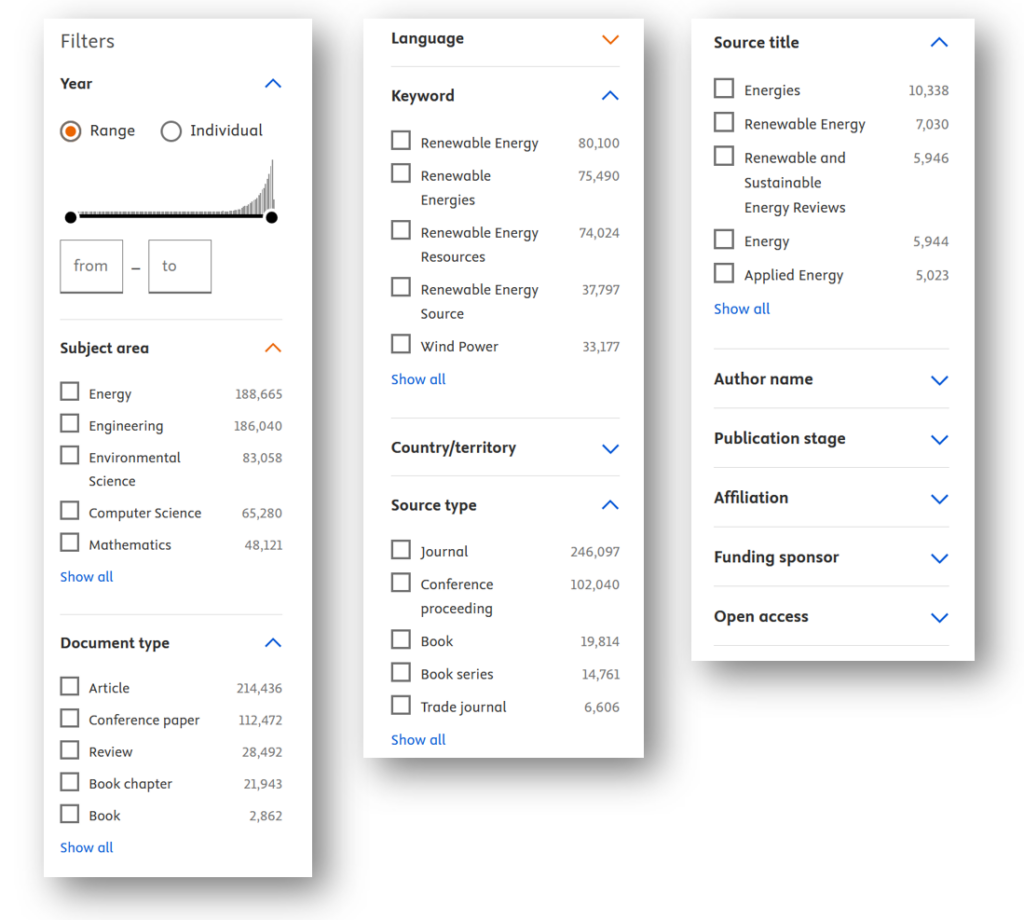
Multiple filtering of search results (Image not under a free license)
Another important way to continue searching through the results is to refine the search. By entering additional terms, you can search for those terms within the current set of results and narrow down the results. In this example, we will first narrow down the results on the topic of “renewable energy” to “wave power.”
After clicking the blue arrow next to “Refine search,” the initial set of nearly 400,000 results is narrowed down to 24,000. Within this set, a search is performed again for the term “tides,” as we are interested in publications on the topic of tidal power. The Refine search now yields only 1,235 results. To examine these more closely, it makes sense to further narrow the focus to Open Access articles, particularly reviews that can provide an introduction to the topic; this leaves 91 results.
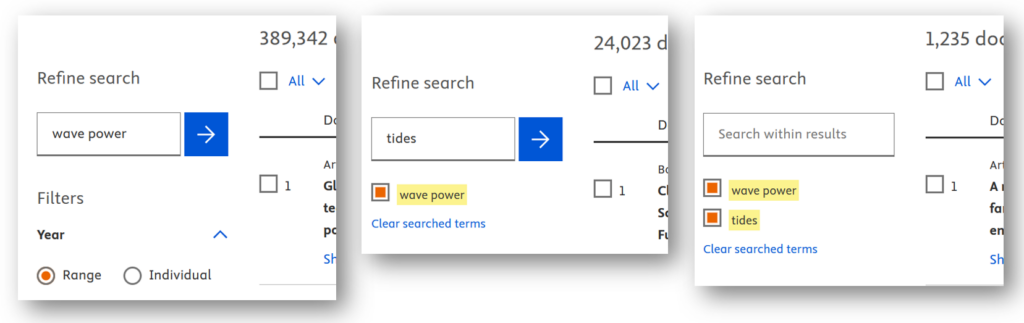
Multiple filtering of search results (Image not under a free license)
To examine the 1,235 results displayed in more detail, the Scopus search results can be analyzed.
Hit analysis
Suppose you want to know:
- which other research areas are exploring a particular topic,
- which journals publish a significant amount on that research topic,
- or you’re looking for other researchers to collaborate with on a joint project?
You can then click the “Analyze results” button (located at the top right of the results list) to view various analyses.

For more information, see Analyze results (Image not under a free license)
Graphical overviews are displayed:
- Documents per year: Published documents by year
- Documents per year per source: Documents per year and source, i.e., the journals with the most publications in a given year
- by author: Number of documents by author:
- by affiliation: Documents by affiliation, in this case universities where the most has been published on a given topic
- by type: Documents by publication type, e.g., articles, review articles, book chapters, conference proceedings
Or sorted by subject area:
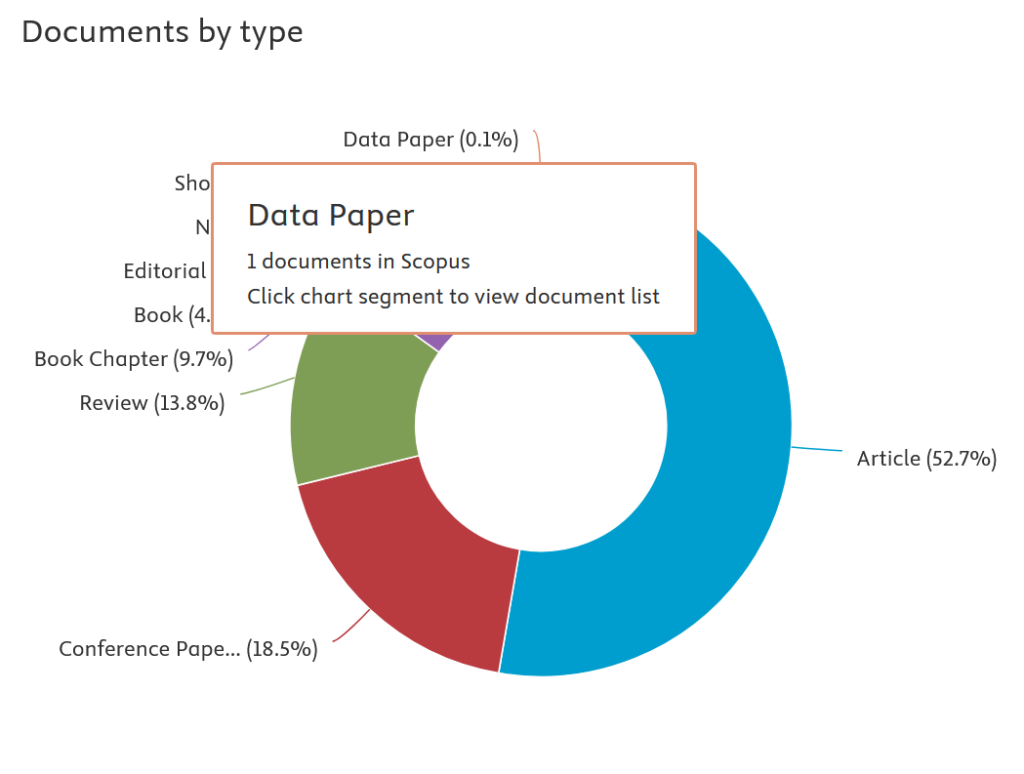
Analyze results: Overview of the various research areas (Image not under a free license)
This example clearly illustrates the wide range of research and publications on the topic of harnessing wave energy through tides. Hovering over each segment displays the number of related publications, and clicking on it opens the corresponding list.
You can also search for specific researchers in Scopus.
Search for researchers
On the homepage, you can search directly for authors as well as for documents; in this example, given Mr. Antranikian’s prominence, simply entering his last name was sufficient.
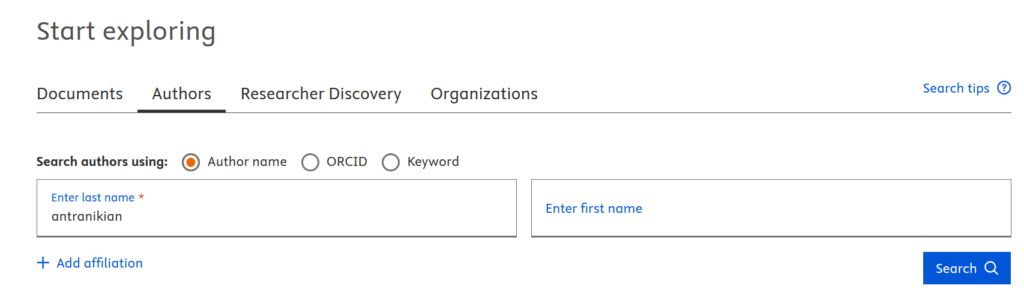
Author search (Image not under a free license)
In the window that opens, you can then choose whether to display the list of publications or the citation overview:
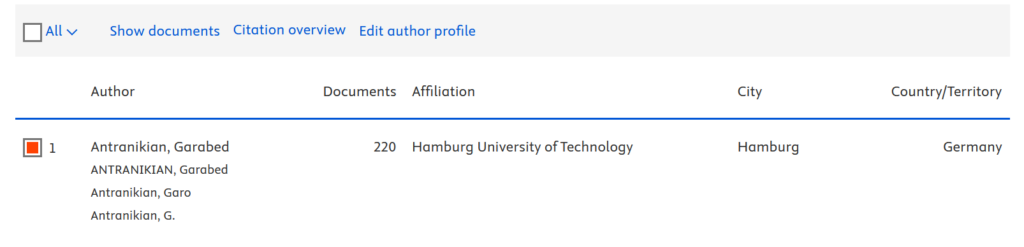
List of publications or citation overview (Image not under a free license)
Another search option in Researcher Discovery is the ability to search for researchers who have published on a specific topic. To do this, you can search for a term—such as “carbon concrete”—and the results will display researchers who have published extensively on that topic.
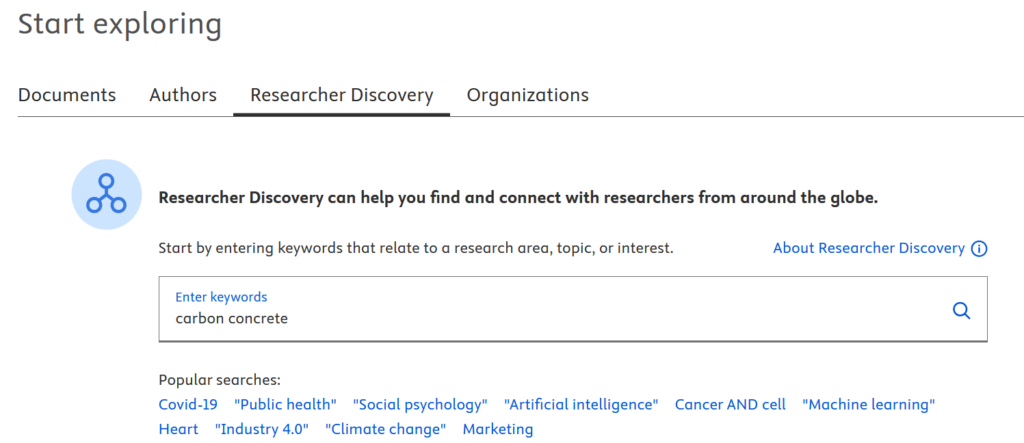
Various search options (Image not under a free license)
This can be helpful when looking for partners for a potential collaboration:
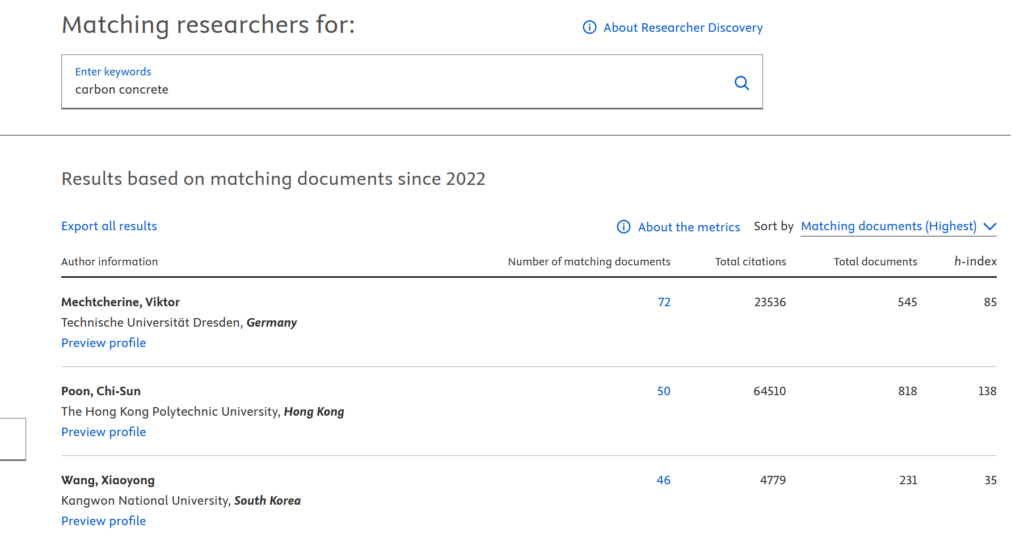
Search for potential project partners (Image not under a free license)
Finally, you can use the “Organizations” section to search specifically for certain organizations, such as universities or research institutions.
Conclusion
Scopus is a database that allows researchers to independently and precisely tailor their searches. As an abstract and citation database, it enables users to search forward and backward for other publications or authors based on works that cite or are cited by a given source. Additionally, search results can be analyzed according to various categories.
As with the similar database Web of Science, which was featured here last month, Scopus’s strength lies in its ability to filter results in various ways. This makes it quick and easy to narrow down and focus on specific results from a large set of findings.
Finally, a recommendation: If you’re unsure whether to use WoS or Scopus, it’s actually best to search both databases. Comparisons show that the same search query yields results that are similar but, in some cases, significantly different in each database. In most cases, Scopus returns more results, but Web of Science supplements these with additional important hits. Ultimately, it is not the number of hits that matters, but their relevance. Furthermore, when you subsequently search the other database using the hits “found” in the first one, the second database usually displays these hits as well—though not in every case. This, too, speaks in favor of using both databases.